START
Use VecSnap in Claude and ChatGPT
Ask for an SVG in your chat. VecSnap converts your image and shows you the drawing in a card. Converting is free, and 1 credit goes only when you press Download.
One address
Connect VecSnap to your chat
Add this address to your chat once, sign in to VecSnap and choose Allow. It needs no plan.
How do I connect it?
How do I convert an image?
Give your chat the image and ask for an SVG. In ChatGPT, attach it or paste a public link. In Claude, VecSnap shows a card and you drop the image on it, because Claude cannot pass an attachment to a connector.
| You ask | You get |
|---|---|
| Convert this logo to SVG. | A clean, filled drawing you can edit, with few anchor points. |
| Vectorize this icon and tell me how many anchor points it has. | The same drawing, and its figures in the chat. |
| Turn this drawing into single lines for my pen plotter. | Each drawn line as one path (centerline). The files for a machine are on its VecSnap page: see Single lines. |
What comes back?
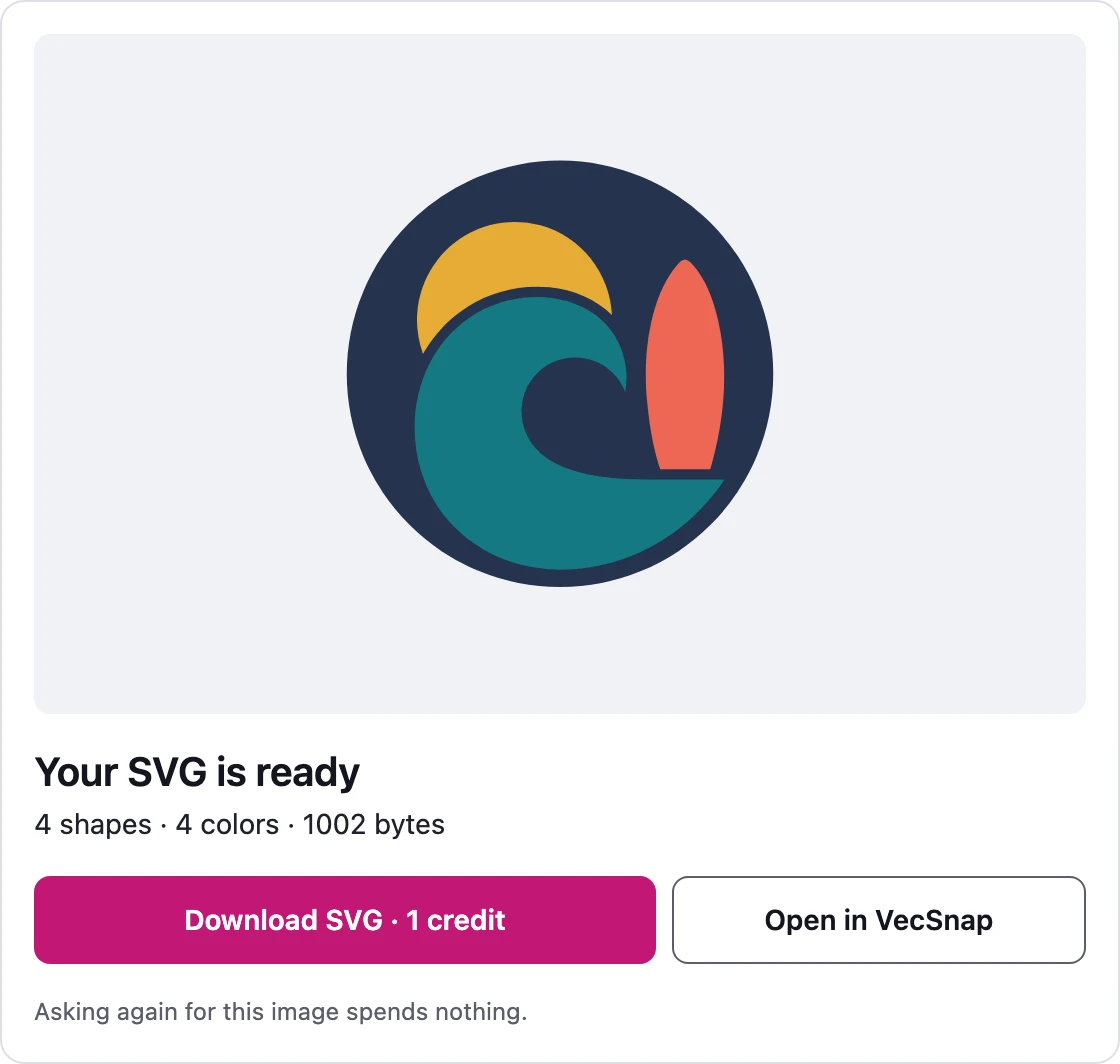
The card shows the drawing, its shapes, colors and file size, and a button to download it. Your chat is told its anchor points too. Shown here: A surf school's logo, drawn by the engine, as the card shows it.
- Anchor points
- 26
- told to your chat, and on your VecSnap page
- File size
- 1002 bytes
- the web file
- Credits
- 1
- only when you press Download, once per image
- On your VecSnap page
- PDFDXFEPSPNG
What does it cost?
Converting and looking are free. Unlocking an image and every file of it takes 1 credit, for good. A chat with a card spends it when you press Download in the card, up to 25 credits a day. Anywhere else, you unlock the image once on its VecSnap page, and your chat can then fetch the file.
What can a connected app see?
- The images you send through it, their results and your credit balance.
- Not your library, your past files or your account. It never receives your email address or your name.
- What the app itself keeps of your chat is under its own terms. See our Privacy policy.
How do I stop it?
Choose Disconnect on your account, under Connected apps. It stops at once. A connection unused for 30 days stops by itself, and after 180 days it asks you to allow it again.
What if something goes wrong?
| What you see | What to do |
|---|---|
| Claude did not get my image | Drop it on the VecSnap card. Claude cannot hand a chat's attachment to a connector. |
| No card appears | Some chats show none. Open the link in the answer, and unlock the image on its page. |
| It asks me to connect again | The connection ended or went unused. Sign in and choose Allow, and your images stay in your account. |
| Out of credits | The drawing is kept. See what credits do, then open it on your VecSnap page. |
| It refused my SVG | An SVG is yours to clean or redraw on vecsnap.com, which asks which you want. |
| The buttons do nothing | Refresh the connector's tools in your chat's settings, then ask again. |