START
Crop a picture before it converts
Keep one part of a picture: one logo from a sheet, a drawing without its page. Only that part is drawn, so it gets the engine's whole attention.
Free · no credit neededHow do I crop a picture?
- Turn on Crop firstUnder the drop area, turn on the Crop first switch. This device keeps it on.
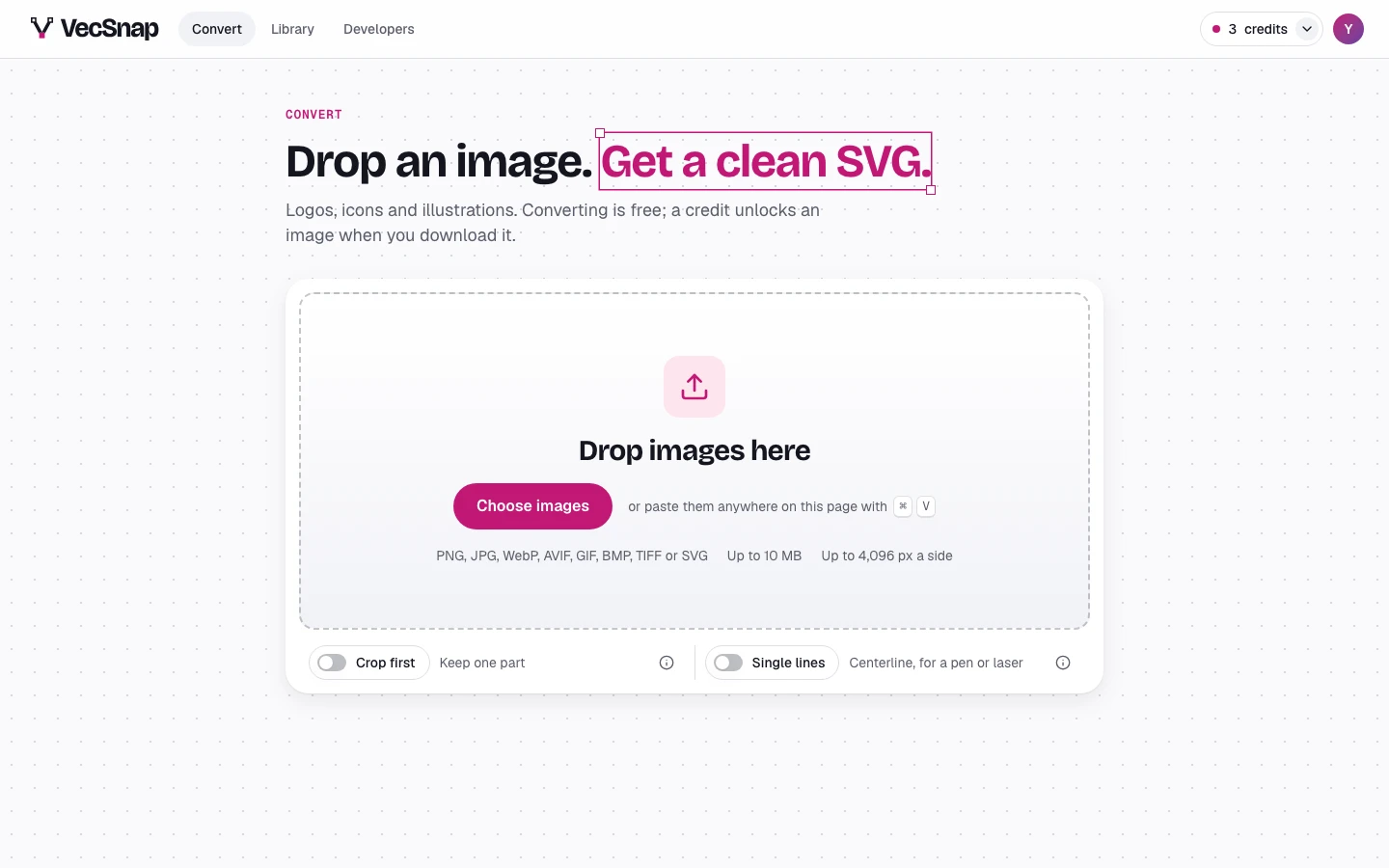
The switch, under the drop area. - Choose the partDrop one picture. Drag the box, its edges or its corners, or drag on the picture to draw a new one. The box stays on the picture. Trim empty edges finds the drawing for you.
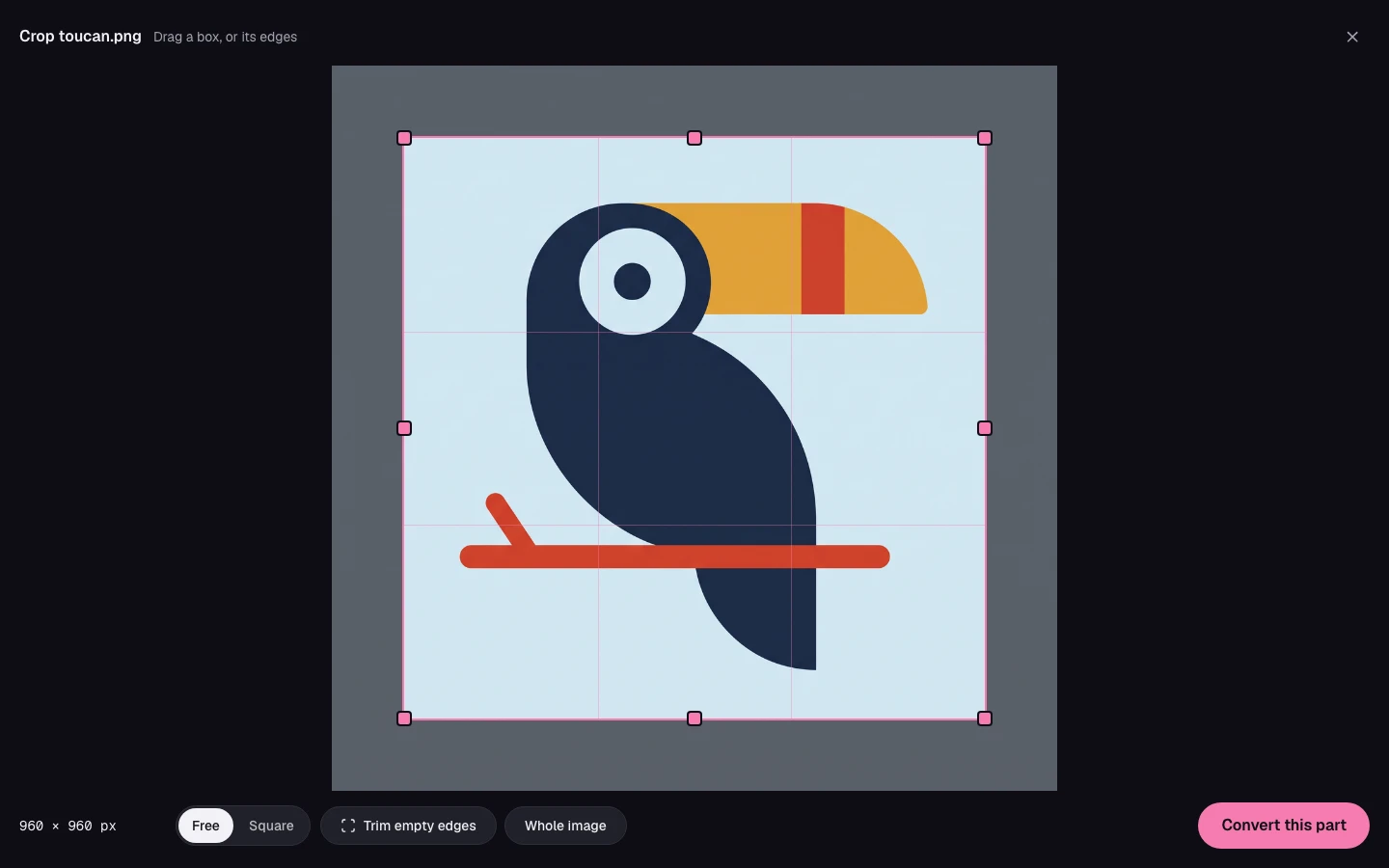
The box, its size in pixels, and what it can do. - Convert itPress Convert this part. Nothing is sent before that press: close the screen, and your file stays yours.
Convert this part, at the end of the bar.
What about an image I already converted?
Open it, or find it in your library, and choose Crop… from its menu. The same screen opens on the same picture.
What does a crop cost?
A part of a picture is a new image: it converts free, and it has its own unlock when you download it. Converting it again later keeps the same part.
What can't be cropped?
An SVG, which has no pixels of its own, and a TIFF before it converts, as a browser cannot show one. With several images at once, they go on whole. A TIFF can be cropped once its result is here.