EDIT SHAPES
Move, size and turn a shape
Press a shape on the drawing, then drag it, pull its box, or type its place and size.
Free · no credit neededHow do I move a shape?
- Select the shapeIn the Shapes tab, press it on the drawing (Select a shape).
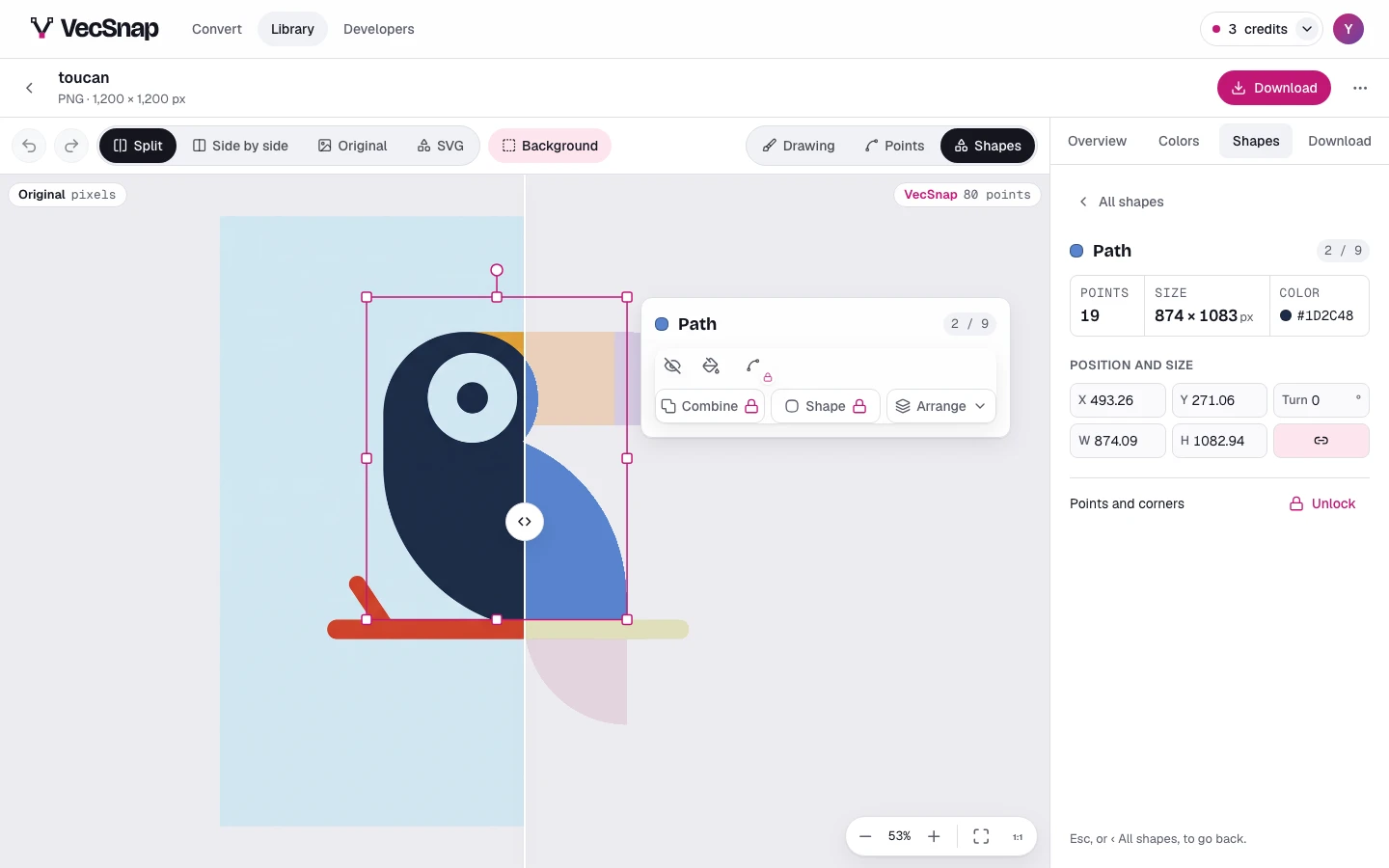
The shape pressed, its card beside it. - Drag itDrag the shape where you want it. The arrow keys nudge it 1 px on screen,
⇧and an arrow 10 px, at any zoom.The shape's box: drag inside it to move the shape. - Pull its boxA corner scales the shape and keeps its proportions, a side stretches it one way, the round knob above turns it.
The box's handles: its corners, its sides and the knob above. - Or type the numbersIn Position and size: its place, its size and its turn. Keep ratio is on until you turn it off.
Position and size in the Shapes tab, and Keep ratio beside the size.
Which handle does what?
| Handle | What it does |
|---|---|
| Corner | Scales the shape and keeps its proportions; with ⌥, from its center |
| Side | Stretches it one way; with ⌥, from its center |
| Knob | Turns it; with ⇧, in steps of 15° |
| Arrows | Nudge it 1 px on screen; with ⇧, 10 px |
How do I type an exact size?
Type it in Position and size, in your image's pixels: a width of 600 is half a 1,200 px drawing. Press Enter, or leave the field, and the shape takes it.
Drawn at once, saved a moment later.The shape moves as you drag; the file follows when you let go. Nothing is spent, and
⌘Z takes it back.